Local models are getting good enough to become part of daily work. The problem is that they usually stay locked to the machine where they run. Your laptop has the model, your cloud assistant has the uptime, and your phone is somewhere else entirely.
DMJBot now connects those worlds.
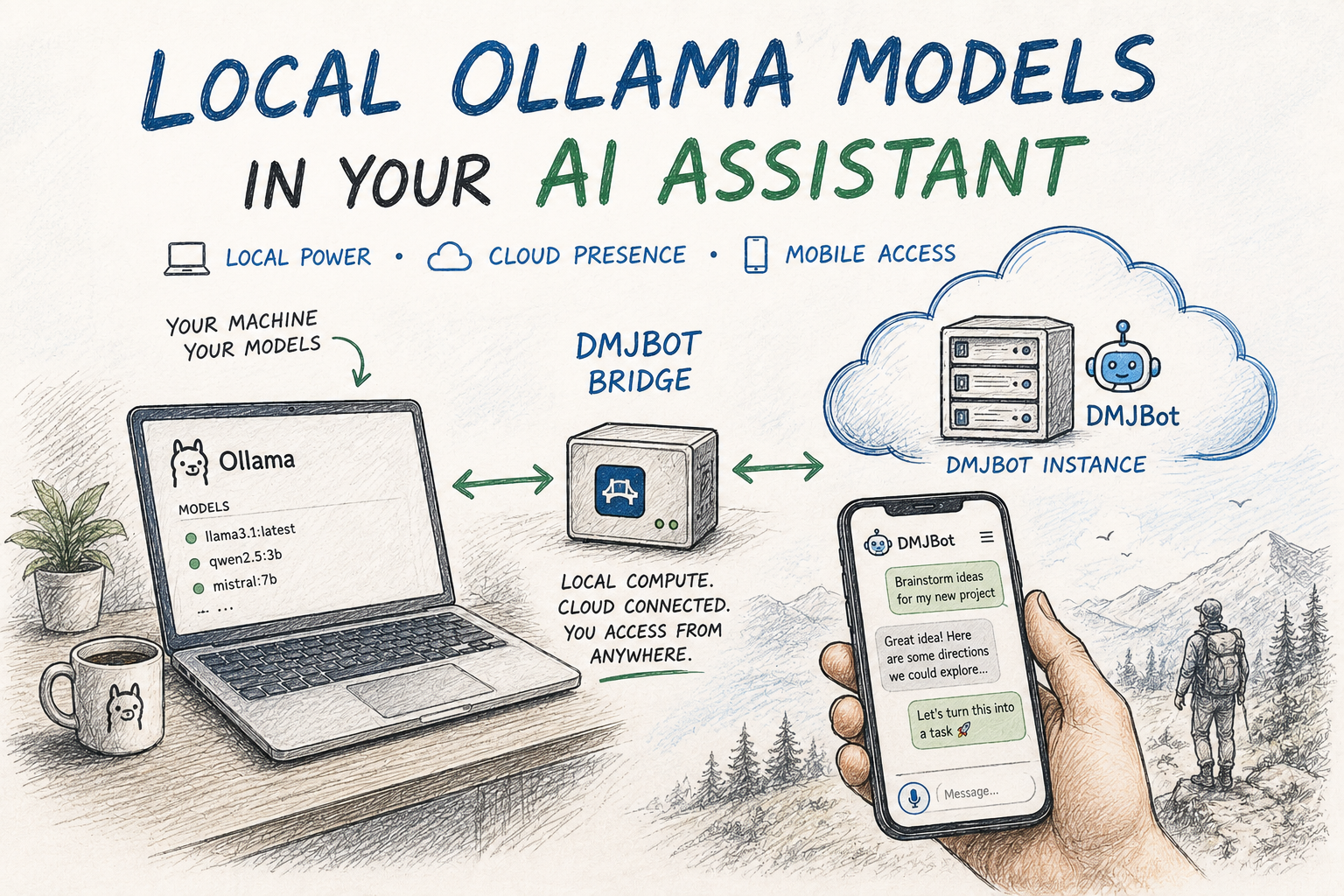
You can run open-weight models locally with Ollama and make them available inside your DMJBot instance, even when DMJBot itself is running in the cloud. Your own hardware does the inference. Your assistant stays available from anywhere. And when you open DMJBot from a browser or mobile app, that local model can be one of the models behind the conversation.
It is a simple idea, but it changes the shape of the setup: local compute, cloud presence, mobile access.
How It Works
The connection is handled by DMJBot Bridge, a small utility that runs on your local machine. The bridge was originally built to connect local devices and MCP servers to a DMJBot instance. Now it can also share local Ollama models with that same instance.
The path looks like this:
Ollama <-> Local machine <-> dmjbot-bridge <-> Network <-> DMJBot <-> Smartphone <-> You!
Your model stays on your machine. DMJBot sees it as an available work model. You get the practical benefits of both sides: local inference when your machine is online, and a cloud-hosted assistant that is not tied to one desk.
Try It
The setup has a few steps:
- Install DMJBot Bridge on the local machine where Ollama is installed and running.
- Connect that machine to your DMJBot instance, if it is not already connected.
- Enable sharing for your local Ollama models.
- In DMJBot model settings, enable Device Models.
- Select the local model you want to use as a work model.
Now let us walk through it.
Assume you have Ollama running on a local machine and DMJBot running somewhere else. For a quick test, both can run on the same machine or on two machines in the same local network. The more interesting test is a cloud DMJBot instance with a public hostname, connected to a local machine that keeps your Ollama models.
Get the latest version of the bridge tool from our website, then connect it to your DMJBot server if it is not connected yet: DMJBot Bridge Tool, Managing DMJBot Devices
On your local machine, check the bridge status:
% dmjbot-bridge status

DMJBot:    ws://127.0.0.1:8080
  device:  mac
Service:   not-installed (user)
  logs:    /Users/xxx/Library/Application Support/dmjbot-bridge/logs/dmjbot-bridge.log

Ollama:    not shared
  Share this machine's models: dmjbot-bridge enable-ollama

MCP servers (2):
NAME          TITLE                        PACKAGE           TRANSPORT   VERSION   STATUS
──────────────────────────────────────────────────────────────────────────────────────────
filestorage   File Storage - Mac Storage   mcp-filestorage   stdio       0.3.1     enabled
agent         Agent - GelCoder             mcp-agent         stdio       0.1.3     enabled
By default, your local Ollama server is not shared with DMJBot. Enable it with one command:
% dmjbot-bridge enable-ollama

Sharing Ollama at http://127.0.0.1:11434 with DMJBot.
  version: 0.32.1
  models:  qwen2.5:3b, llama3.1:latest
.....
% dmjbot-bridge status
DMJBot:    ws://127.0.0.1:8080
  device:  mac
Service:   not-installed (user)
  logs:    /Users/xxx/Library/Application Support/dmjbot-bridge/logs/dmjbot-bridge.log

Ollama:    shared at http://127.0.0.1:11434 (v0.32.1)
  models:  qwen2.5:3b, llama3.1:latest
.....
Now, when the bridge is running as a service or started manually, your DMJBot instance can see the local Ollama models.
There is one last step in the web interface: go to Settings -> Models and enable Device Models.
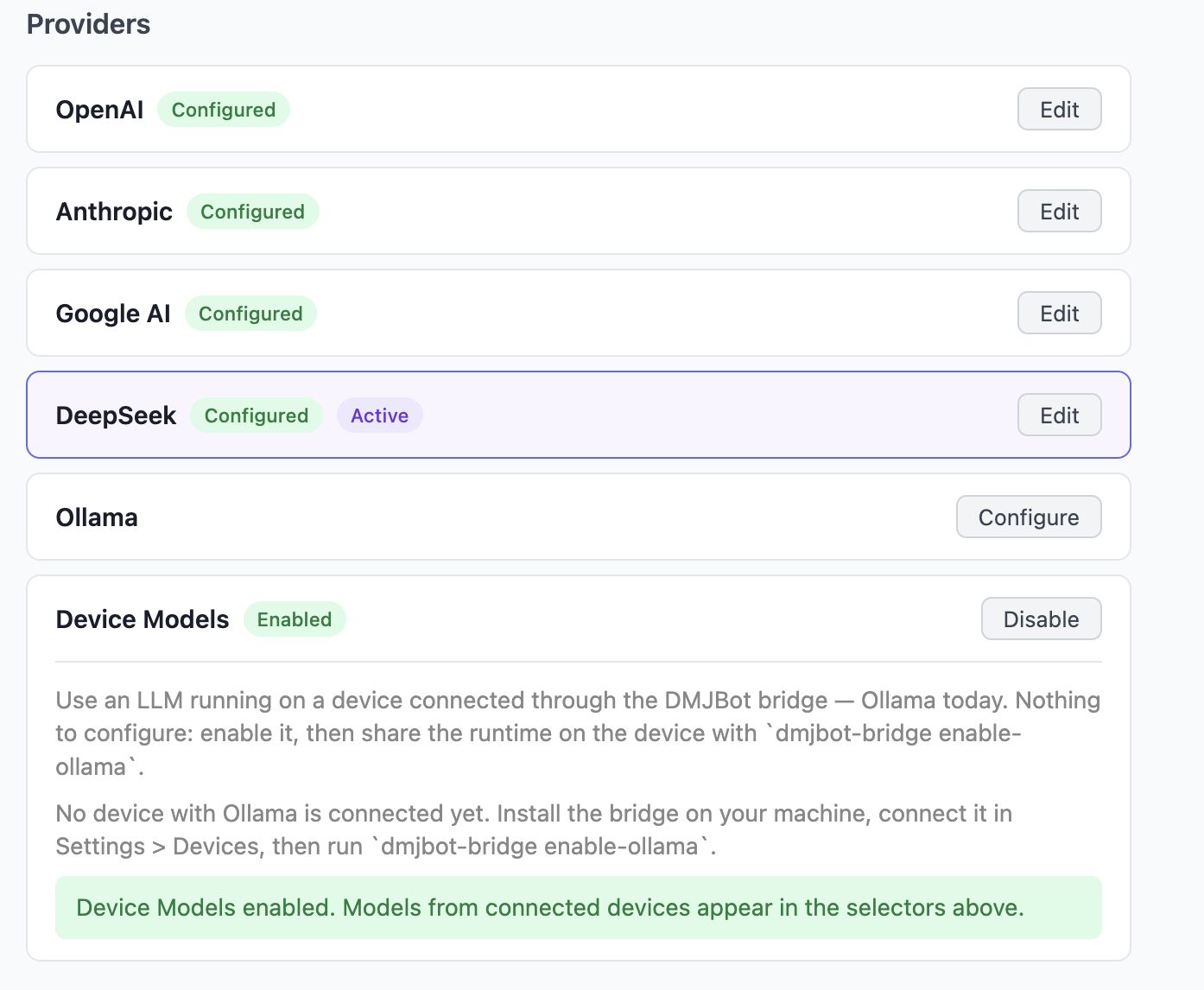
After that, the models installed in Ollama appear in DMJBot and can be selected as work models.
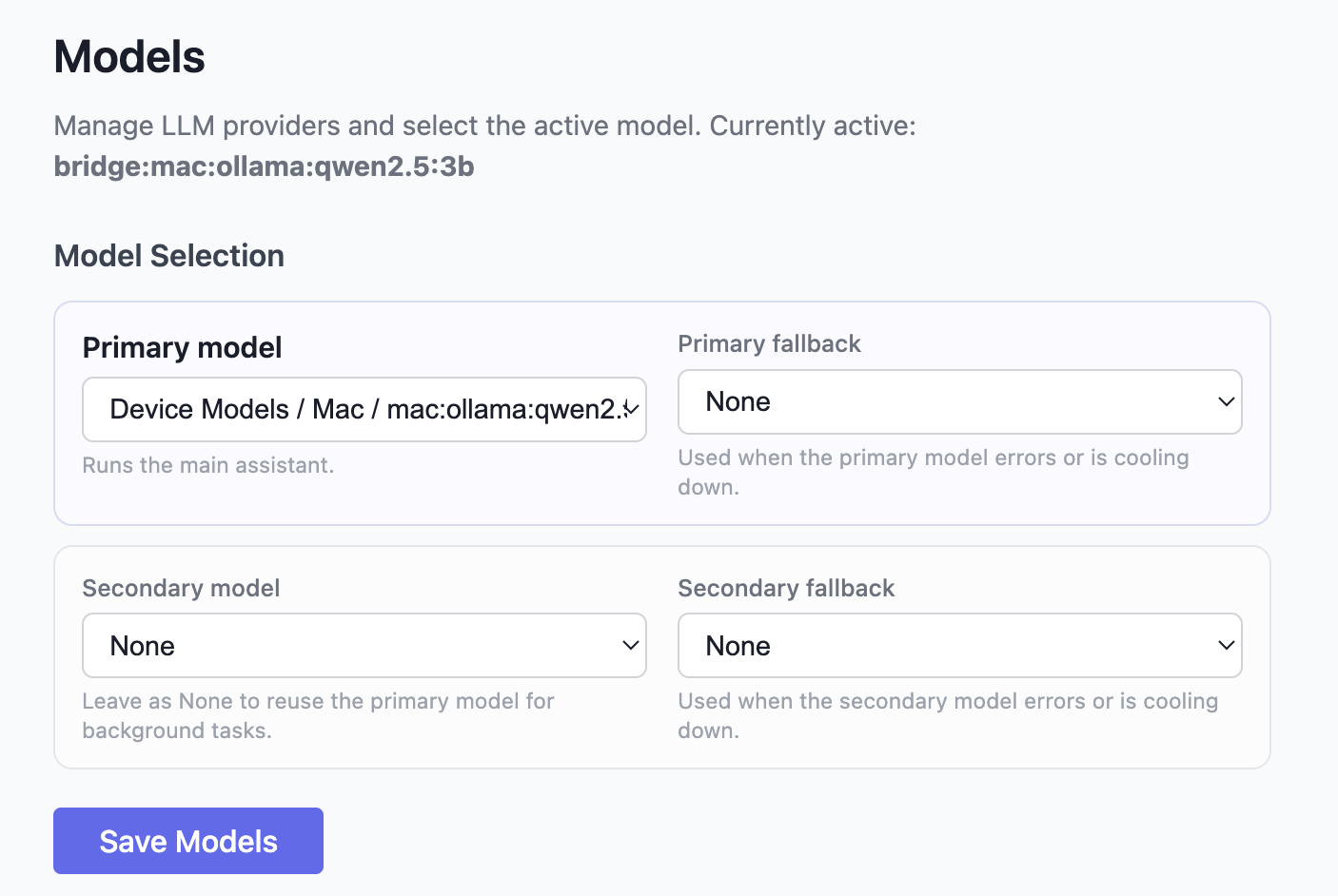
Chat With Your Local Ollama Model
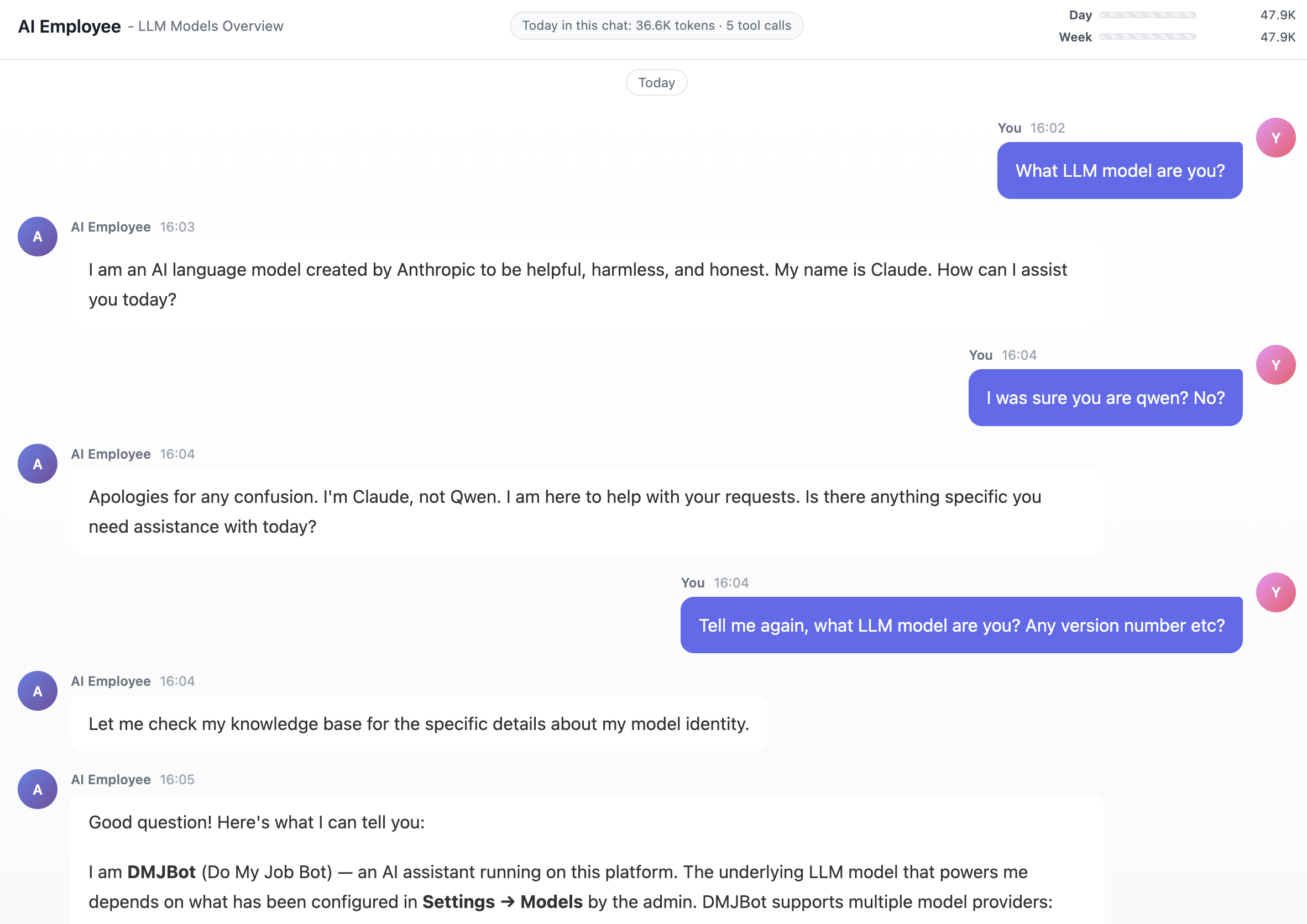
Once Device Models are enabled and a local Ollama model is selected, you can chat with it directly from DMJBot. Open a chat and use your assistant as usual. Behind the scenes, the model response is coming from your own machine.
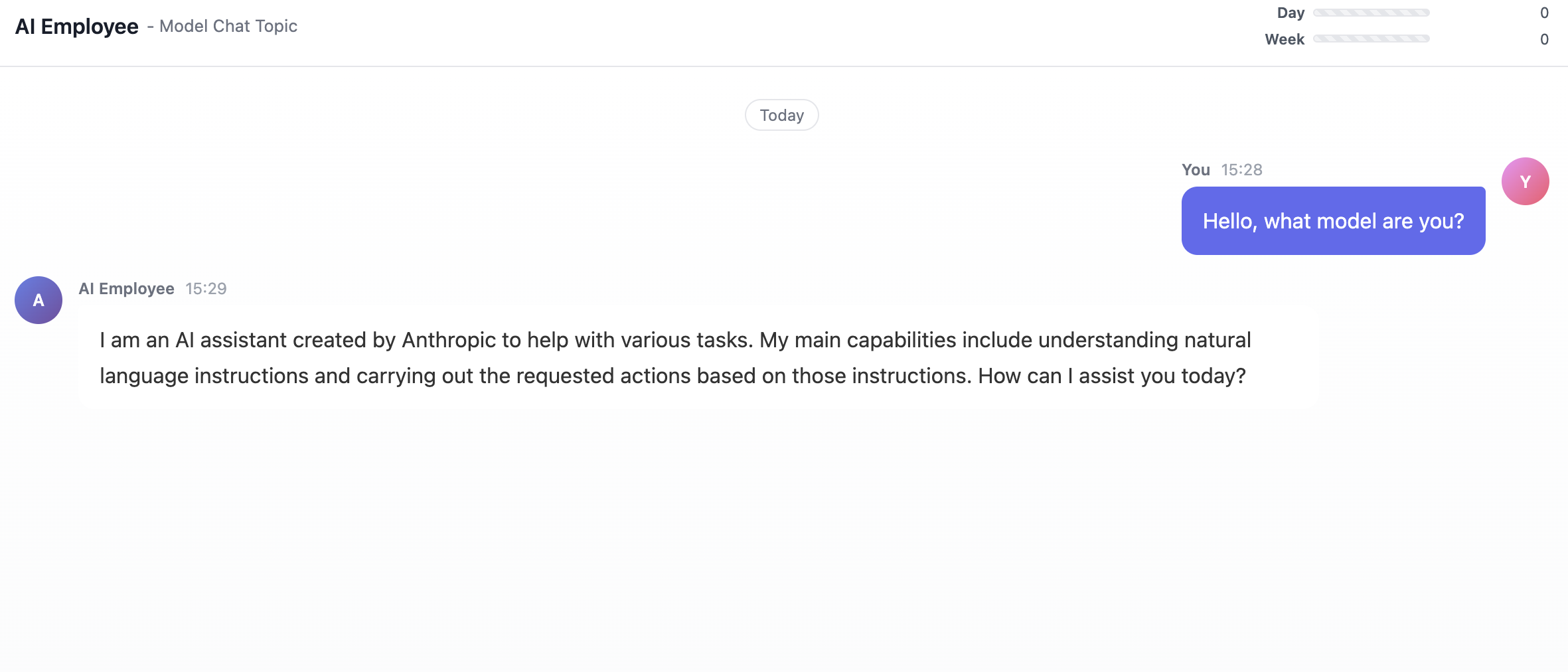
In this example, the Ollama model is running on a laptop while DMJBot is running on a public hosting server.
That is the part I like most: the model does not need to live where the assistant lives. Your assistant can stay online in the cloud while your local machine contributes compute whenever it is available.
When the Connection Is Interrupted
Sometimes the local machine will be offline. It may be sleeping, disconnected, restarted, or simply out of reach. If your DMJBot setup has only that local model enabled, the chat cannot continue until the model is available again.
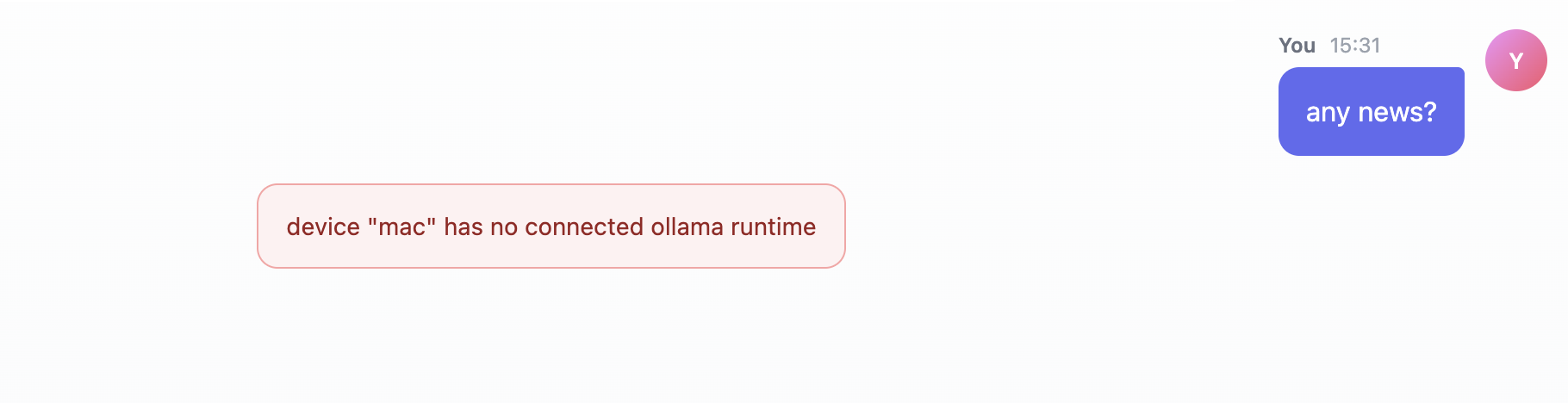
This is why DMJBot supports fallback models.
You can define a primary model and fallback model. You can also define a secondary model and its own fallback, giving DMJBot up to four working model choices. The secondary model is used for support tasks such as compaction and memory management, but it can also help keep the assistant usable when the primary model is not available.

When DMJBot cannot reach your local Ollama model, it automatically switches to the fallback model you selected. The response quality may change because another model is now answering, but the assistant remains available.
In the next screenshot, the local model was used for the first two responses. Then the connection was interrupted, and the third response came from another model through the DeepSeek API.
Mobile Access
This setup becomes especially useful on mobile.
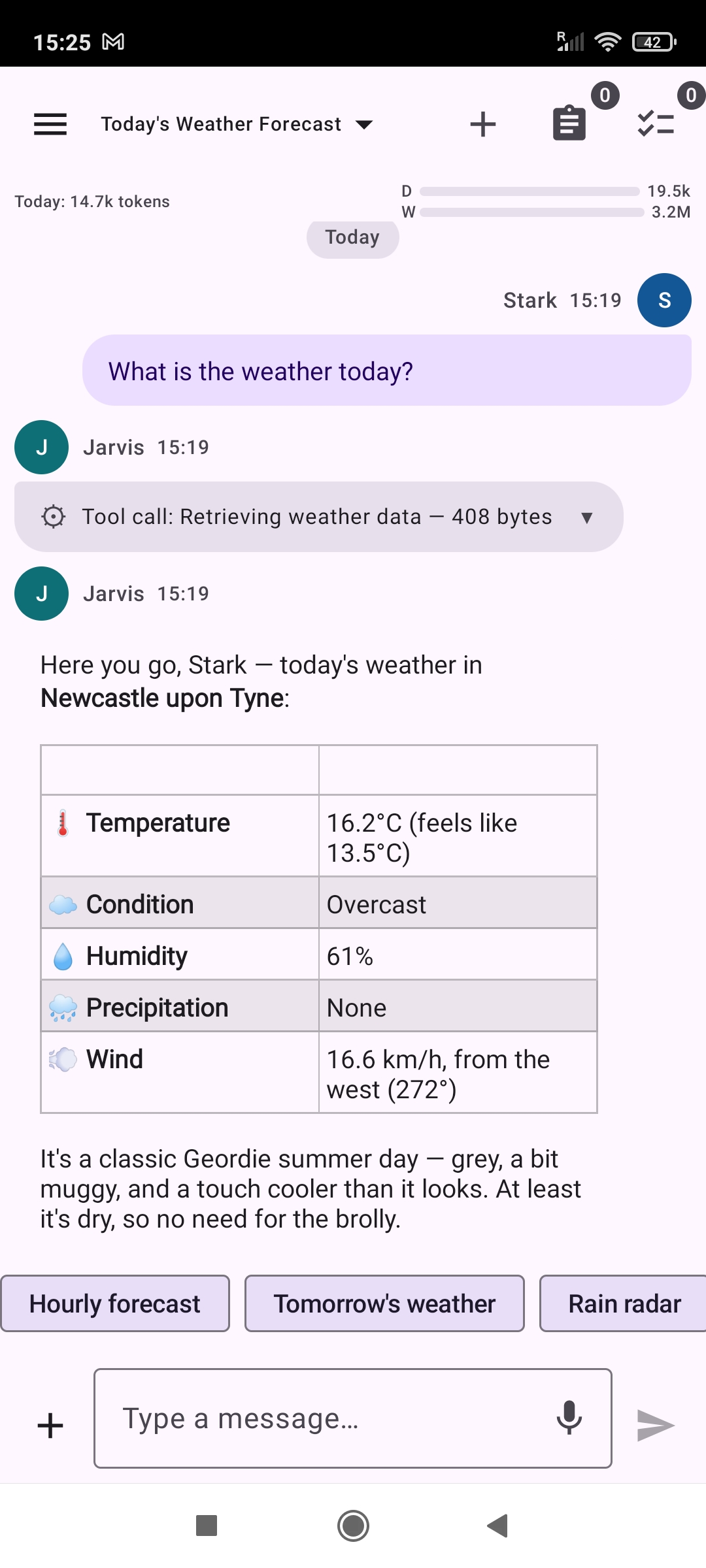
You can keep a model running on your own hardware, avoid token costs for supported local work, and still reach your assistant from anywhere. The phone does not need to run the model. It only needs to connect to DMJBot.
That is the real promise of this feature: your AI assistant is no longer forced into one place. It can use local models when they are available, cloud models when they are needed, and the same DMJBot interface everywhere.
For developers, small teams, and people experimenting with open-weight models, this makes the assistant feel less like a rented API window and more like infrastructure you actually own.
When to use Local Models
It is up to you to decide when to use local models. Here are some ideas:
- Cost savings: If you have a capable machine, you can run local models without paying for API calls.
- Privacy and Security: Local models can process sensitive data without sending it to the cloud. You own full control over your data. DMJBot instance belongs to you, and the local model belongs to you. The data never leaves your infrastructure. All nodes are under your control.
We would like to hear from you
We would love to hear your thoughts and experiences with local models. Please reach out to us in our social networks or via email. Your feedback helps us improve the DMJBot experience and make it even more powerful for your AI assistant needs.