Jira & Confluence MCP Server
This server connects DMJBot to Atlassian Cloud — Jira (REST v3) and Confluence (v2). DMJBot can read and update issue descriptions and comments, create subtasks, read the parent/story context of an issue, and read/update Confluence pages. Plain text, Markdown and Atlassian wiki markup are converted to and from Atlassian Document Format (ADF) automatically.
What DMJBot can do
get_my_tasks— list your assigned, not-yet-done issues.get_scrum_dashboard— show a board's active sprint, grouped by column.get_task_description— read an issue description as Markdown.get_task_details— get the full raw JSON of an issue.get_task_story_context— read the parent/story context and sibling issues.update_task_description— update an issue description.add_comment/update_comment/get_comments— manage comments.add_attachment— upload a file to an issue (optionally linked to a comment).create_subtask— create a child issue under an existing one.get_confluence_page/update_confluence_page— read and update Confluence pages by ID or URL.
Notifications
When monitoring is enabled the server polls Jira (via JQL — Atlassian Cloud has no webhook here) and emits:
jira_issue_assigned— an issue in the configured project is newly assigned to you.jira_comment_mention— a new comment mentions you.
Pre-existing assignments are seeded on start and do not fire.
Authentication
This server uses Atlassian Cloud Basic auth with your account email and an API token — not OAuth, not your password.
- Create an API token at https://id.atlassian.com/manage-profile/security/api-tokens.
- Note your Atlassian site URL, e.g.
https://your-domain.atlassian.net(Confluence uses the same base URL). - Have your project key ready (e.g.
ENG) — it scopes notification polling.
Add the server
The Jira & Confluence server is bundled in the DMJBot catalog. Add it either in DMJBot itself or on a connected device:
-
In DMJBot:
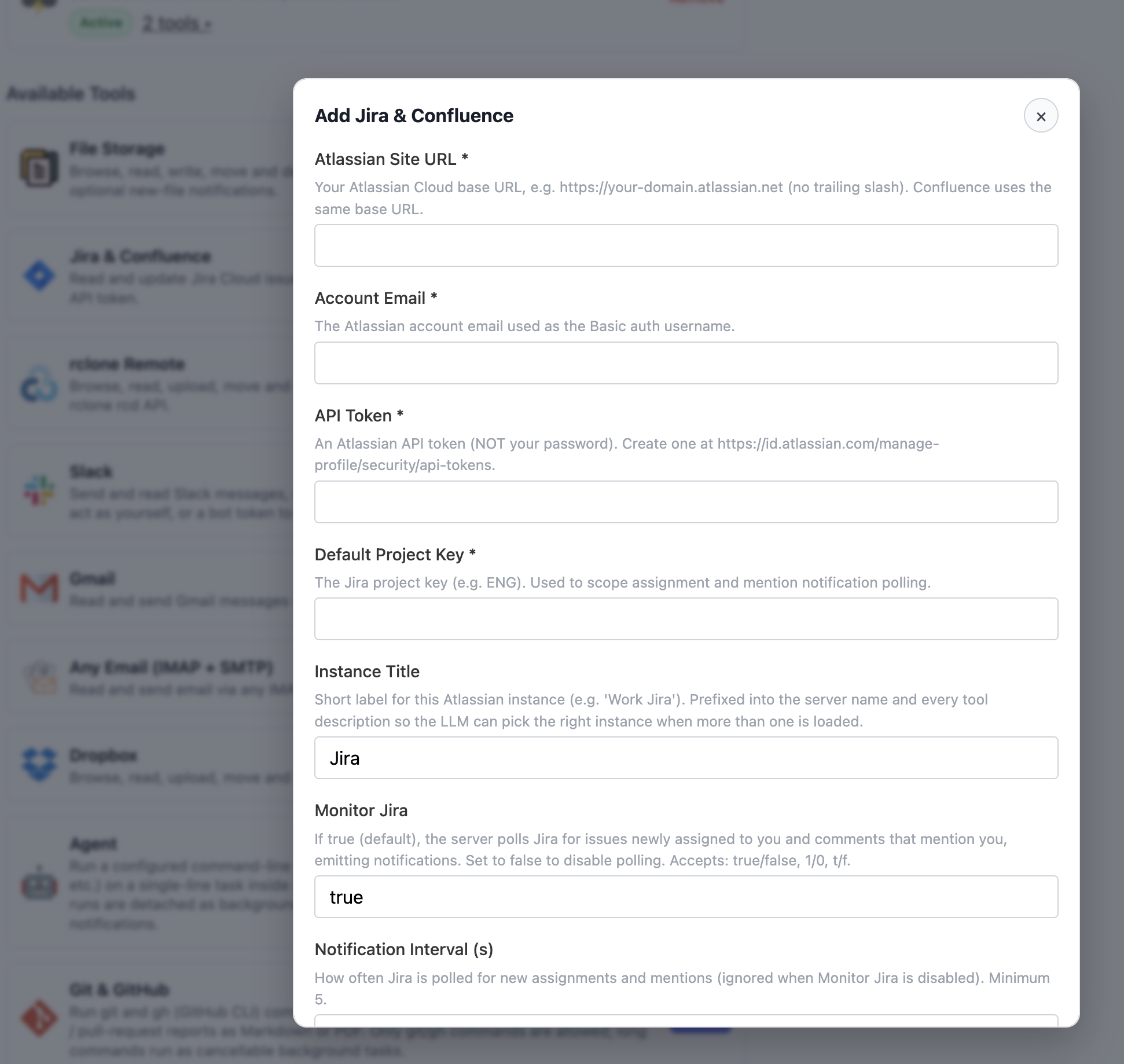
Settings -> Tools, add the Jira & Confluence server from the catalog, and fill in the configuration fields below. -
On a device (bridge):
dmjbot-bridge install jira-confluence
dmjbot-bridge configure jira-confluence
dmjbot-bridge start
You can run more than one instance (multiple Atlassian sites) — give each a distinct Instance Title so DMJBot can tell them apart.
Configuration
| Field | Required | Default | Description |
|---|---|---|---|
| Atlassian Site URL | yes | — | Base URL, e.g. https://your-domain.atlassian.net (no trailing slash). |
| Account Email | yes | — | Atlassian account email (Basic auth username). |
| API Token | yes | — | Atlassian API token (Basic auth password). Sensitive. |
| Default Project Key | yes | — | Project key (e.g. ENG); scopes assignment and mention notifications. |
| Instance Title | no | Jira |
Short label prefixed into the server name and tool descriptions so DMJBot can pick the right instance when several are loaded. |
| Monitor Jira | no | true |
Poll for new assignments and mentions. |
| Notification Interval (s) | no | 60 |
How often Jira is polled (minimum 5; ignored when monitoring is off). |
Boolean fields accept true/false, 1/0, t/f.
Tips
- The same credentials cover both Jira and Confluence; you don't configure Confluence separately.
- If you don't want notifications, set Monitor Jira to
false— the tools still work on demand.