
Slack MCP Server
The Slack MCP server lets DMJBot work inside your Slack workspace: send and read messages, reply in threads, add reactions, upload and download files, and browse users. It can also notify you about new messages while you chat with DMJBot.
What DMJBot can do
send_message— send a message to a channel or DM.reply_in_thread— reply to a message inside its thread.add_reaction— add an emoji reaction to a message.list_channels— list channels you (or the bot) can see.list_messages— list recent messages in a channel.upload_file/download_file— upload a file, or download one by its Slack file ID.list_users— list workspace users.
Notifications
When monitoring is enabled the server polls Slack and emits events DMJBot can react to:
slack_channel_message— new top-level message in a monitored channel.slack_thread_reply— new reply in a thread within a monitored channel.slack_direct_message— new direct message from any user.
Slack offers no webhook for token-only apps, so monitoring works by polling. Your own messages and the backlog present at startup do not fire notifications.
Use a user token
Use a user token (xoxp-...). DMJBot then acts as you: messages post under
your name and you can read any channel you already belong to — nothing extra to set
up per channel. This is the recommended and simplest setup.
Tokens do not expire unless you enable token rotation for the app.
Get a user token
-
Create a Slack app at https://api.slack.com/apps → Create New App.
-
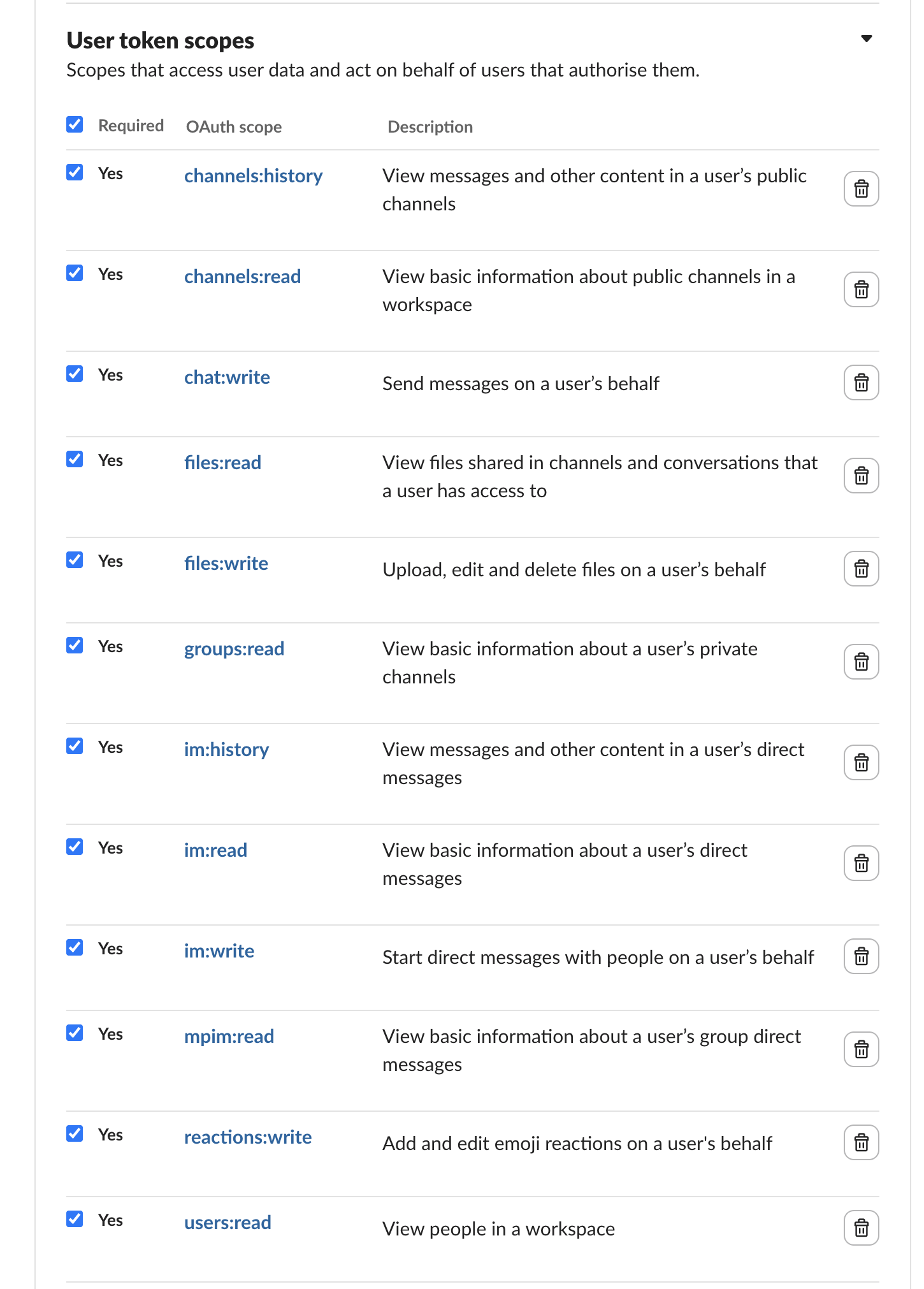
Open OAuth & Permissions and add these scopes under User Token Scopes:
chat:write channels:read groups:read channels:history groups:history im:read im:history mpim:history users:read files:write files:read reactions:writereactions:writeis needed only foradd_reaction, andfiles:readonly fordownload_file; everything else works without them. -
Reinstall the app to the workspace and copy the User OAuth Token (
xoxp-...).
Bot token (advanced): the server also accepts a bot token (
xoxb-...) if you add the same scopes under Bot Token Scopes instead. DMJBot then acts as the app rather than you, and you must/invitethe bot into every channel it should read or post in. The user token is recommended unless you specifically need a separate app identity.
Add the server
The Slack server is bundled in the DMJBot catalog. Add it either in DMJBot itself or on a connected device:
-
In DMJBot:
Settings -> Tools, add the Slack server from the catalog, and fill in the configuration fields below. -
On a device (bridge):
dmjbot-bridge install slack
dmjbot-bridge configure slack
dmjbot-bridge start
You can run more than one Slack server (multiple workspaces) — give each a distinct Workspace Title so DMJBot can tell them apart.
Configuration
| Field | Required | Default | Description |
|---|---|---|---|
| Slack Token | yes | — | A user token (xoxp-...), recommended. A bot token (xoxb-...) also works (see above). Sensitive. |
| Workspace Title | no | Slack |
Short label prefixed into the server name and tool descriptions so DMJBot can pick the right workspace when several are loaded. |
| Monitored Channels | no | (empty) | Comma-separated channel names or IDs to watch. You (or the bot) must be a member of each. Empty disables channel monitoring. |
| Monitor Direct Messages | no | true |
Notify on new DMs from any user. |
| Monitor Thread Replies | no | true |
Notify on new replies in threads within monitored channels. |
| Monitor Interval (s) | no | 30 |
How often Slack is polled (minimum 5). |
| Monitor Slack | no | true |
Master on/off for the notification poller. |
Boolean fields accept true/false, 1/0, t/f.
Tips
- If you see frequent
ratelimitedlogs, raise Monitor Interval (s) or watch fewer channels — Slack rate-limits the history API. - Use a user token for the simplest setup; you avoid inviting a bot into every channel.