
Dropbox MCP Server
The Dropbox MCP server lets DMJBot work with files in your Dropbox: list folders, read files (text or base64), create folders, upload, delete and move/rename. Its tool vocabulary matches the File Storage and rclone servers. It can also notify DMJBot when new files appear in folders you watch.
It connects to the Dropbox API v2 using OAuth2 refresh tokens — you supply an app key, app secret and a long-lived refresh token, and the server mints and auto-refreshes the short-lived (4 h) access tokens itself, so it keeps working indefinitely without manual re-tokening.
What DMJBot can do
folder_contents— list the entries inside a folder.file_metadata— get metadata for a file or folder.file_contents/file_contents_base64— read a file as text or base64.create_folder— create a folder.save_file— upload a file from base64 content.delete_file/delete_folder— delete a file or folder (recursive optional).move_path— move or rename a file or folder.
Notification
new_file— a new file appears under one of the monitored folders. The backlog present at startup is seeded via a delta cursor and does not fire.
Authentication (OAuth2 refresh token)
You obtain the refresh token once:
-
Go to https://www.dropbox.com/developers/apps → Create app.
-
Choose Scoped access, then App folder (recommended) or Full Dropbox.
-
On the app's Permissions tab enable:
files.metadata.read,files.content.read,files.content.write,account_info.read. Submit the changes. -
On the Settings tab copy the App key and App secret.
-
Authorize — open this URL (substitute your App key) and approve; Dropbox then shows an authorization code:
https://www.dropbox.com/oauth2/authorize?client_id=YOUR_APP_KEY&response_type=code&token_access_type=offlinetoken_access_type=offlineis what makes Dropbox return a refresh token. -
Exchange the code for tokens (the code is single-use and expires in a few minutes):
curl https://api.dropboxapi.com/oauth2/token \ -d code=THE_CODE \ -d grant_type=authorization_code \ -d client_id=YOUR_APP_KEY \ -d client_secret=YOUR_APP_SECRET -
Copy the
refresh_tokenfield from the JSON response.
The refresh token does not expire until revoked. Its scopes are fixed at authorization time — if you later add a Permissions-tab scope, repeat steps 5–7 to mint a new refresh token.
The steps above are the manual fallback. In practice you rarely run the curl step
yourself — both ways of adding the server can derive the refresh token for you once
you provide the App Key and App Secret:
- Adding in DMJBot (web / direct MCP): the flow is fully automated. Enter the App
Key and App Secret, then use the Generate button next to Refresh Token —
DMJBot opens the authorize page, handles the code exchange, and fills the token in.
You don't copy any URLs or run
curl. - Adding with the bridge tool: during
dmjbot-bridge configure dropboxthe tool runs the same authorize → exchange flow. It tries to open the authorize URL in your browser automatically; if it can't, it prints the URL for you to copy into a browser. You approve in Dropbox and the tool captures the token. Only if this guided flow is unavailable do you fall back to the manual steps above.
Add the server
The Dropbox server is bundled in the DMJBot catalog. Add it either in DMJBot itself or on a connected device:
-
In DMJBot:
Settings -> Tools, add the Dropbox server from the catalog, and fill in the configuration fields below. -
On a device (bridge):
dmjbot-bridge install dropbox
dmjbot-bridge configure dropbox
dmjbot-bridge start
You can run more than one Dropbox server (multiple accounts) — give each a distinct Storage Title so DMJBot can tell them apart.
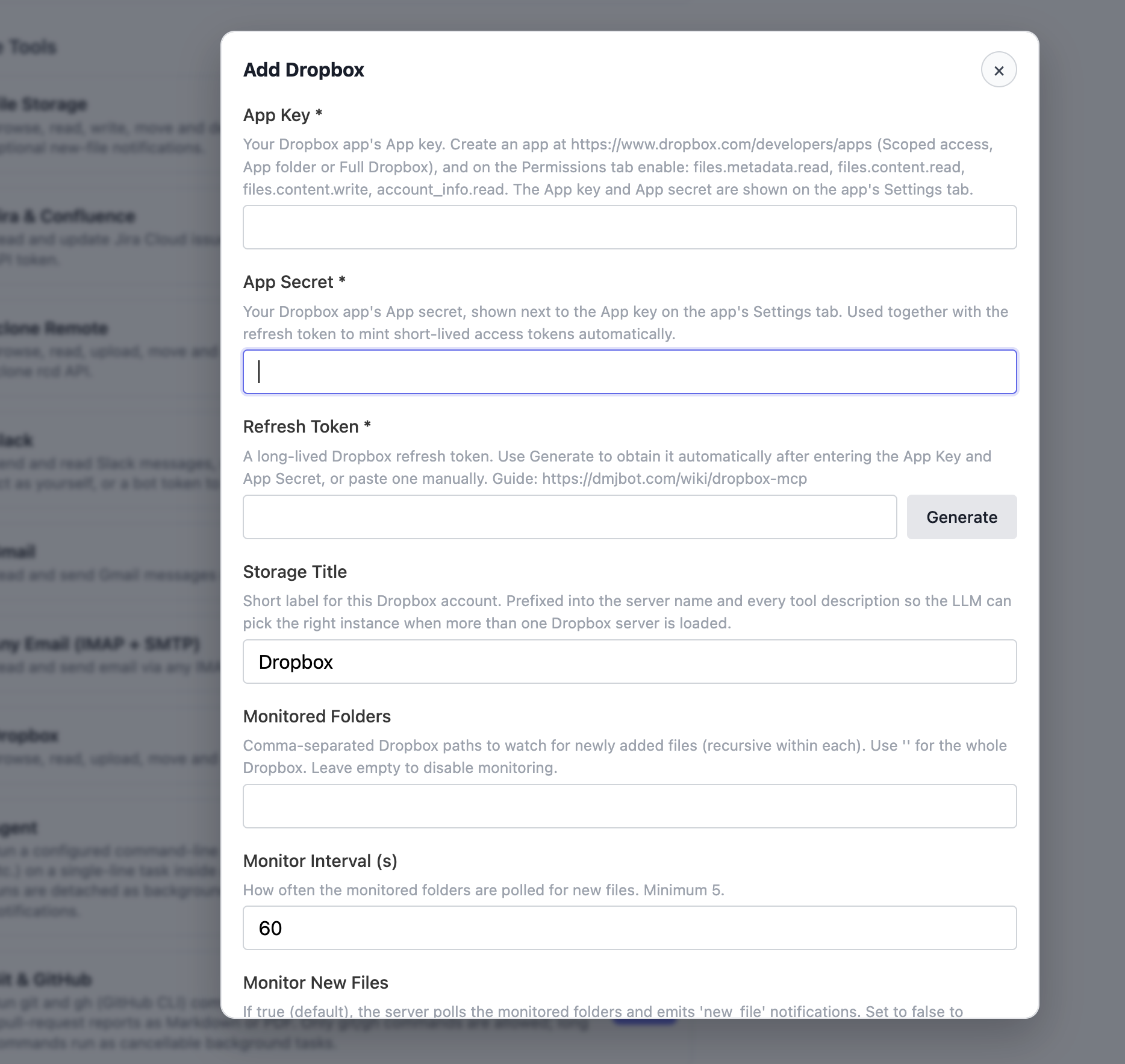
Configuration
| Field | Required | Default | Description |
|---|---|---|---|
| App Key | yes | — | Dropbox app key (Settings tab). |
| App Secret | yes | — | Dropbox app secret (Settings tab). Sensitive. |
| Refresh Token | yes | — | Long-lived refresh token from the authorize → exchange flow above. Sensitive. |
| Storage Title | no | Dropbox |
Short label prefixed into the server name and tool descriptions so DMJBot can pick the right account when several are loaded. |
| Monitored Folders | no | (empty) | Comma-separated Dropbox paths watched recursively for new files. Use '' for the whole Dropbox; leave empty to disable monitoring. |
| Monitor Interval (s) | no | 60 |
How often monitored folders are polled (minimum 5). |
| Monitor New Files | no | true |
Run the new-file poller. |
Boolean fields accept true/false, 1/0, t/f.
Paths: an empty string is the Dropbox root; other paths may be given with or without
a leading slash (folder/sub or /folder/sub).
Tips
- Choose App folder access when creating the app to scope DMJBot to a single dedicated folder rather than your whole Dropbox.
- If you add a permission scope after authorizing, the existing refresh token keeps its old scopes — re-run the authorize step to pick up the new ones.